
Draft Products
A seller doesn't have to finish a product in one sitting. Save as Draft keeps a work-in-progress listing private — it isn't sent to the admin for approval and never appears on the storefront — until the seller is ready to submit it.
What you'll learn
- How a product becomes (and stays) a draft
- How drafts appear in the products list
- How a draft is submitted for approval
How drafts happen
Every product you create from scratch starts life as a draft, so you can build it up safely. While creating or editing a product — or listing one with Sell as Yours — the form gives you two choices:
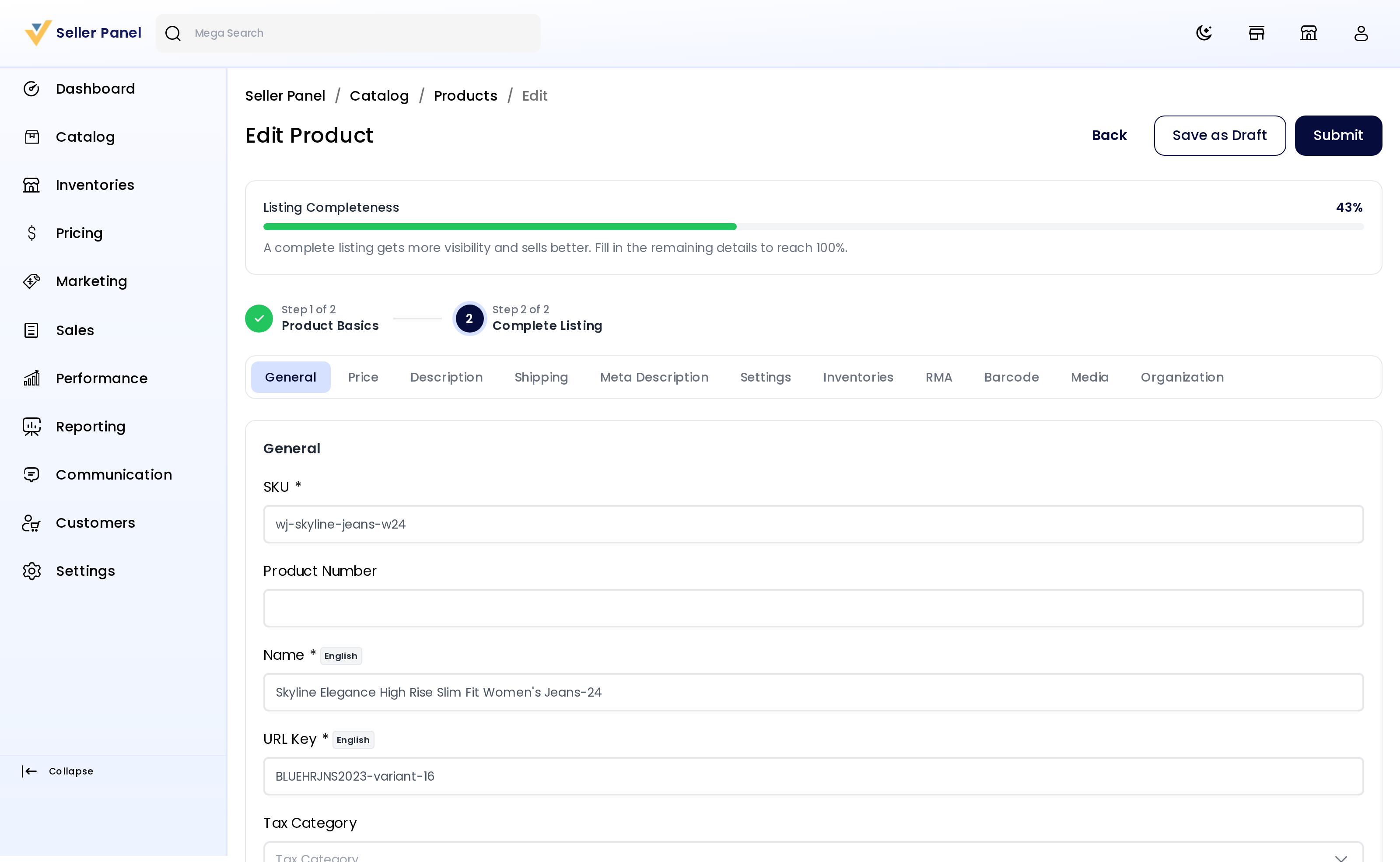
- Save as Draft — stores what you've entered and keeps the product a draft so you can come back to it. It relaxes the checks a submission enforces: when you're listing a product with Sell as Yours, details like condition and description can be left blank. A few core essentials (such as SKU and URL key) are still required to save.
- Submit — validates the listing and sends it into the approval flow.
Finding your drafts
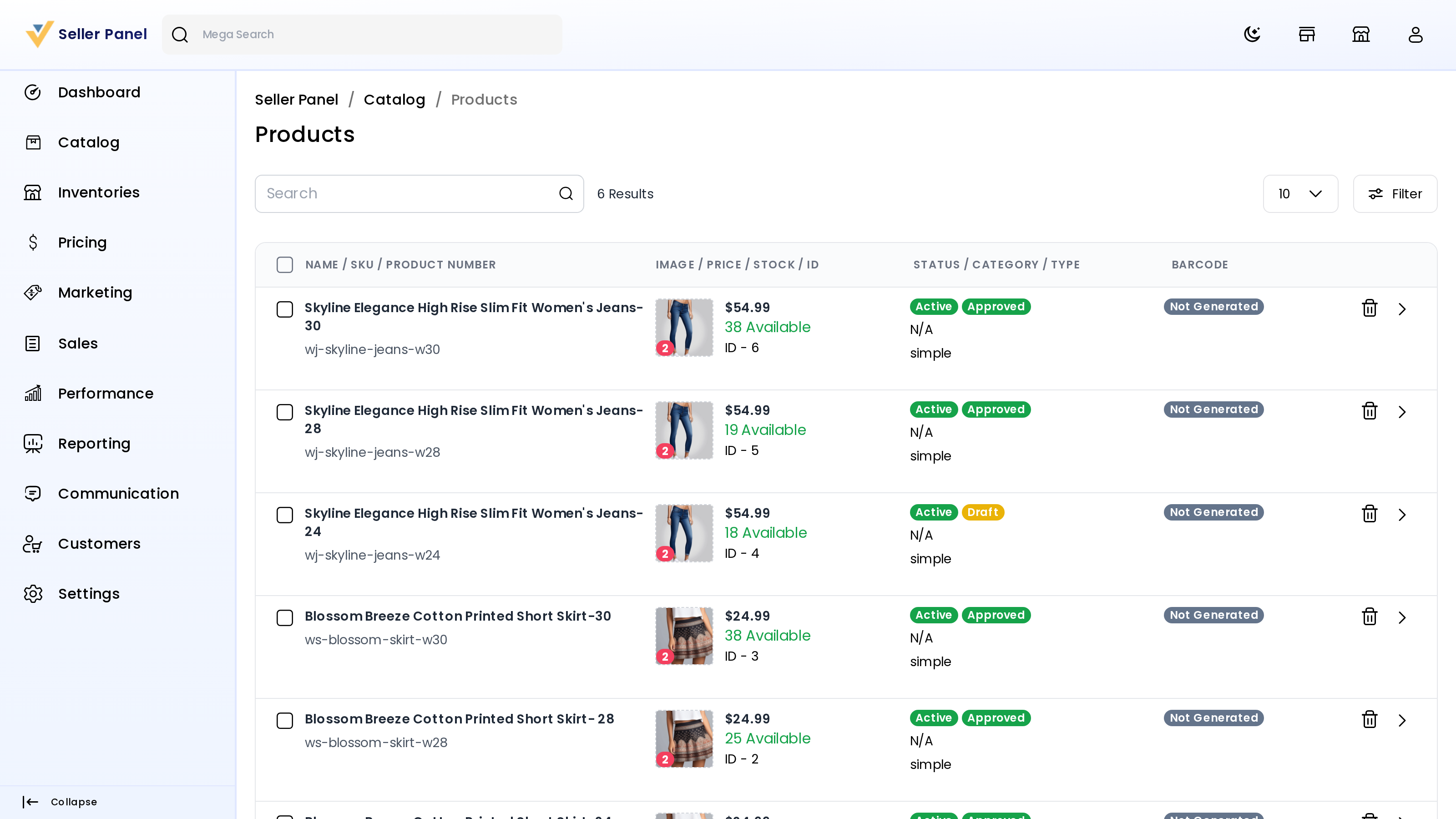
In Catalog → Products, the Draft Status column marks each product as Draft or Submitted, and you can filter the list by it. A draft's price, stock, images, and every other detail are all saved and fully editable.
Publishing a draft
Open the draft, complete the remaining details, and Submit. It then enters the normal approval flow — the admin reviews it, and once approved it goes live. See Product Management for the approval side.
Rejection reasons
If the admin rejects a submitted product, they can attach a reason, which you'll see on the listing (its status shows Rejected) — so it's clear what to fix before resubmitting.