
Magic AI for Sellers
Magic AI lets sellers draft product content — descriptions, other attributes, and suggested categories — with AI, straight from the product form, instead of writing everything by hand. The admin controls who can use it and how often.
What you'll learn
- What Magic AI generates and where
- How the admin enables it and sets limits
- How a seller uses it, step by step
What it does
When Magic AI is enabled, a Generate content button appears in the product edit form header. From a short description you write — and, if allowed, reference photos you attach for the AI to read — it proposes values for the listing's fields and suggests categories, which you review and apply. Magic AI does not create images; it only reads the reference photos you provide. Nothing is saved until you save the product.
Enabling Magic AI (admin)
Magic AI is off until the admin turns it on. It's controlled in a few places:
- Globally, under Configure → Magic AI, where the AI provider credentials, model, and product-content options are set (including whether sellers may attach reference images, how many, and which attributes are in scope).
- Per seller, on the seller's admin edit form: Magic AI Enabled and a Magic AI Generation Limit for that seller.
- Limits — each seller gets a generation quota over a period (daily by default, or monthly). Usage is recorded only on a successful generation, so a failed attempt never costs a generation.
WARNING
Magic AI needs a valid AI provider configured under Configure → Magic AI. Without working credentials the Generate content button won't run — even if it's enabled for the seller.
Using Magic AI (seller)
On a product's edit form, select Generate content to open the Magic AI dialog:
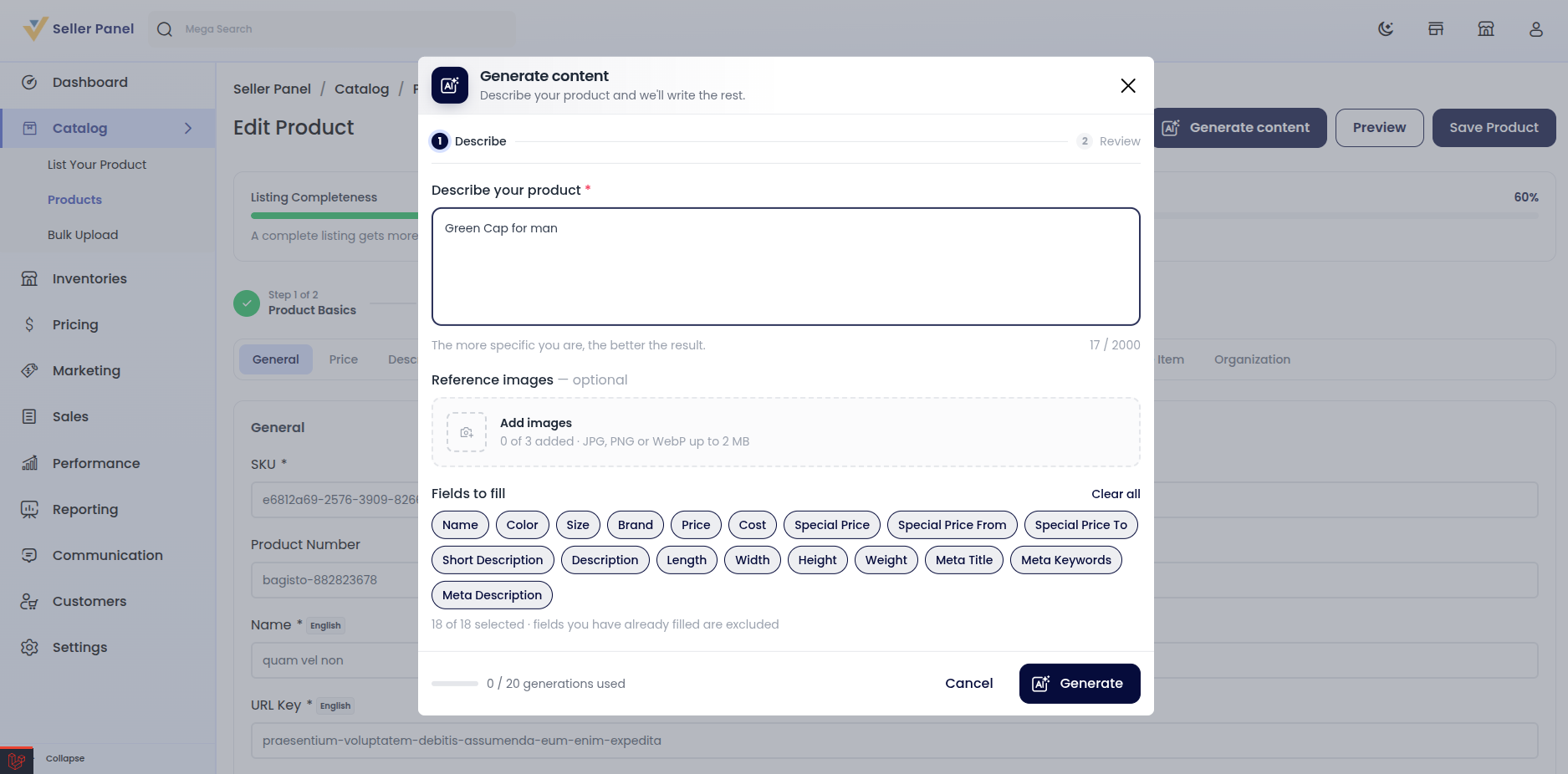
- Describe your product — write a short description (this is the prompt). Optionally attach reference images, and — where the admin allows it — pick exactly which fields to fill; eligible fields come pre-selected. Whether fields you've already filled are included depends on the admin's Overwrite Filled Attributes setting.
- Generating — Magic AI drafts the content.
- Review — each proposed field is shown as a card marked new or replaces, with the previous value struck through; suggested categories appear too. You can Regenerate any single field, and skipped items explain why. A running meter shows how many generations you've used against your limit.
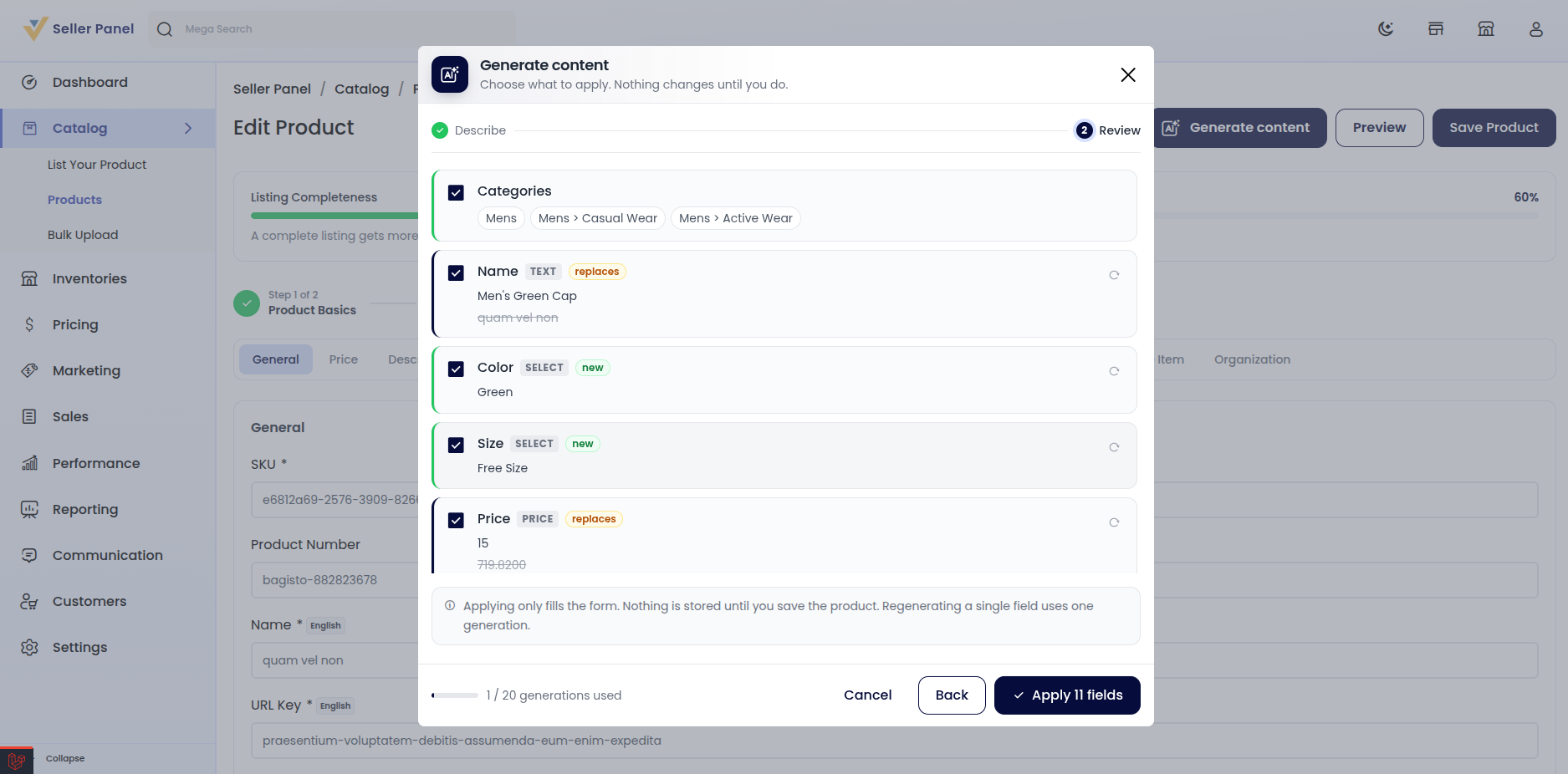
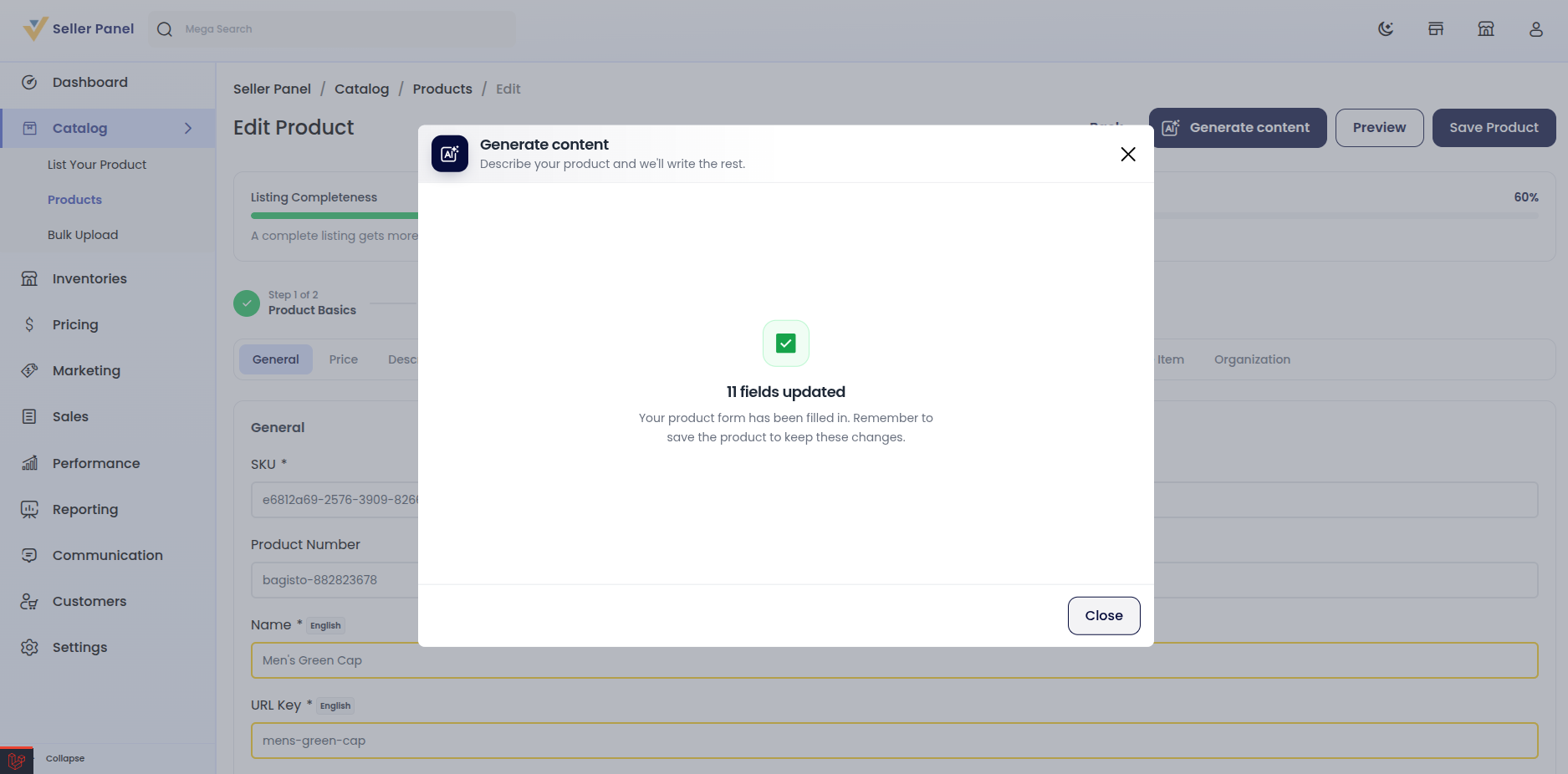
- Apply — applying only fills the form (and ticks suggested categories; if you opted in, your uploaded reference photos are reused as the product's images). The listing is still a draft until you save it, and it goes through the normal approval flow.
If you've used your whole quota, the dialog tells you when it resets; if there's nothing left to fill, it says so.
TIP
Write a specific, factual description — materials, size, use, audience. The better your prompt, the less editing the drafted content needs before you submit for approval.